---
uid: Guides.GettingStarted.Installation
title: Installing Discord.Net
---
# Discord.Net Installation
Discord.Net is distributed through the NuGet package manager, so it is
recommended for you to install the library that way.
Alternatively, you may compile from the source and install the library
yourself.
## Supported Platforms
Currently, Discord.Net targets [.NET Standard] 1.3 and 2.0.
Since Discord.Net is built on top of .NET Standard, it is also
recommended to create applications using [.NET Core],
although it is not required.
When using .NET Framework, it is suggested to
target `.NET Framework 4.6.1` or higher.
> [!WARNING]
> Using this library with [Mono] is not recommended until further
> notice. It is known to have issues with the library's WebSockets
> implementation and may crash the application upon startup.
[Mono]: https://www.mono-project.com/
[.NET Standard]: https://docs.microsoft.com/en-us/dotnet/articles/standard/library
[.NET Core]: https://docs.microsoft.com/en-us/dotnet/articles/core/
[additional steps]: #installing-on-net-standard-11
## Installing with NuGet
Release builds of Discord.Net will be published to the
[official NuGet feed].
Development builds of Discord.Net, as well as add-ons, will be
published to our [MyGet feed].
* Direct feed link: `https://www.myget.org/F/discord-net/api/v3/index.json`
Not sure how to add a direct feed? See how [with Visual Studio] or
[without Visual Studio].
[official NuGet feed]: https://nuget.org
[MyGet feed]: https://www.myget.org/feed/Packages/discord-net
[with Visual Studio]: https://docs.microsoft.com/en-us/nuget/tools/package-manager-ui#package-sources
[without Visual Studio]: #configuring-nuget-without-visual-studio
### [Using Visual Studio](#tab/vs-install)
> [!TIP]
> Don't forget to change your package source if you're installing from
> the developer feed.
> Also make sure to check "Enable Prereleases" if installing a dev
> build!
1. Create a new solution for your bot.
2. In the Solution Explorer, find the "Dependencies" element under your
bot's project.
3. Right click on "Dependencies", and select "Manage NuGet packages."

4. In the "Browse" tab, search for `Discord.Net`.
5. Install the `Discord.Net` package.

### [Using JetBrains Rider](#tab/rider-install)
> [!TIP]
> Make sure to check the "Prerelease" box if installing a dev build!
1. Create a new solution for your bot.
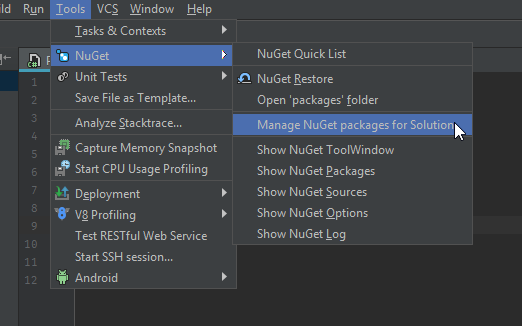
2. Open the NuGet window (Tools > NuGet > Manage NuGet packages for
Solution).
3. In the "Packages" tab, search for `Discord.Net`.

4. Install by adding the package to your project.

### [Using Visual Studio Code](#tab/vs-code)
> [!TIP]
> Don't forget to add the package source to a [NuGet.Config file] if
> you're installing from the developer feed.
1. Create a new project for your bot.
2. Add `Discord.Net` to your .csproj.
[!code[Sample .csproj](samples/project.xml)]
[NuGet.Config file]: #configuring-nuget-without-visual-studio
### [Using dotnet CLI](#tab/dotnet-cli)
> [!TIP]
> Don't forget to add the package source to a [NuGet.Config file] if
> you're installing from the developer feed.
1. Open command-line and navigate to where your .csproj is located.
2. Enter `dotnet add package Discord.Net`.
[NuGet.Config file]: #configuring-nuget-without-visual-studio
***
## Compiling from Source
In order to compile Discord.Net, you will need the following:
### Using Visual Studio
* [Visual Studio 2017](https://www.visualstudio.com/)
* [.NET Core SDK]
The .NET Core and Docker (Preview) workload is required during Visual
Studio installation.
### Using Command Line
* [.NET Core SDK]
## Additional Information
### Installing on Unsupported WebSocket Platform
For older system such as Windows 7 or earlier that do not natively
support WebSocket, you may encounter
@System.PlatformNotSupportedException upon connection.
You may resolve this by either targeting .NET Core 2.1 or later, or
by installing one or more custom packages as listed below.
#### [Targeting .NET Core 2.1](#tab/core2-1)
First, make sure your installed SDK supports .NET Core 2.1.
Enter `dotnet --version`; the version number should be equal to or above
`2.1.300`. If not, visit [.NET Core SDK] website to download the latest
version.
Next, ensure your project is set to target Core 2.1; you should replace
the `` tag in your project file to `netcoreapp2.1` or
above. Alternatively, you may specify the target framework upon build
using the `-f` or `--framework` parameter.
* For example, `dotnet build -c Release -f netcoreapp2.1`
#### [Custom Packages](#tab/custom-pkg)
First, install the following packages through NuGet, or, if you prefer
compile them yourself:
* `Discord.Net.Providers.WS4Net`
* `Discord.Net.Providers.UDPClient`
> [!NOTE]
> `Discord.Net.Providers.UDPClient` is _only_ required if your
> bot will be utilizing voice chat.
Next, you will need to configure your [DiscordSocketClient] to use
these custom providers over the default ones.
To do this, set the `WebSocketProvider` and the optional
`UdpSocketProvider` properties on the [DiscordSocketConfig] that you
are passing into your client.
[!code-csharp[Example](samples/netstd11.cs)]
[DiscordSocketClient]: xref:Discord.WebSocket.DiscordSocketClient
[DiscordSocketConfig]: xref:Discord.WebSocket.DiscordSocketConfig
***
### Configuring NuGet without Visual Studio
If you plan on deploying your bot or developing outside of Visual
Studio, you will need to create a local NuGet configuration file for
your project.
To do this, create a file named `NuGet.Config` alongside the root of
your application, where the project is located.
Paste the following snippets into this configuration file, adding any
additional feeds if necessary.
[!code[NuGet Configuration](samples/nuget.config)]
[.NET Core SDK]: https://www.microsoft.com/net/download/